
Getting started · Menu
How Gigoo Restaurant handles getting started: your menu from Excel
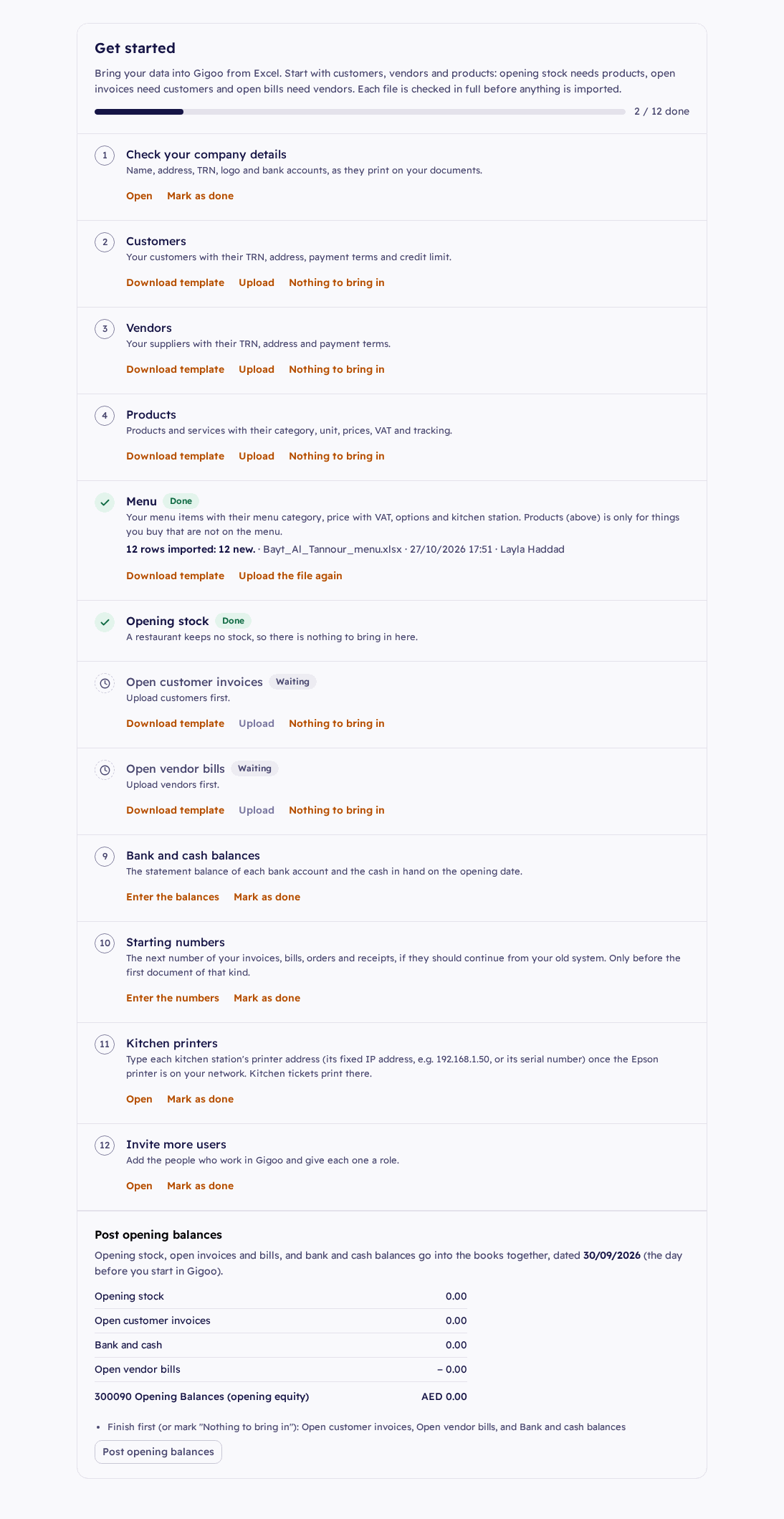
Your sign-up answers set up the tills, staff, kitchen stations and tables. Then Get started brings your menu in from one Excel file, checked in full before anything is imported.
What Gigoo does for you
- The sign-up answers set the name on receipts, the tills and their opening cash, the bank for card sales, cashiers and waiters, kitchen stations, the number of tables and QR ordering on or off.
- Get started brings your menu in from Excel and lists the set-up steps per role. The Restaurant Manager has his own Get started.
- The file is checked in full: problems are shown by row and column before anything is imported. The same file twice changes nothing.
- A dish with options opens a box at the till to pick them. Combos are set up on the item in Gigoo.
What you do
- Open Get started, find the Menu card and click Download template.
- Fill one row per dish: the item, its menu category, the price with VAT, the kitchen station, the cost category, the options and whether it shows on the till and on the QR menu.
- Save the file and click Upload on the same card.
- Type each kitchen station's printer address on the Kitchen printers card.
The menu file
Every column has its help in the file, in English and Arabic. Options are written as "Spice: Mild, Hot | Size: Regular, Large +5", where +5 is the extra price.
| Column | العمود |
|---|---|
| Item | الصنف |
| Item in Arabic | الصنف بالعربية |
| Menu category | فئة القائمة |
| Price with VAT | السعر مع الضريبة |
| Kitchen station | محطة المطبخ |
| Options | الخيارات |
Questions
Do I type every dish's name in Arabic?
Only if you want your own Arabic: an empty Item in Arabic uses the name above.
What if a row has a mistake?
Nothing is imported. Gigoo lists each problem by row and column; correct the file and upload it again.
How do I add a table later?
In Configuration › Restaurant › Floors & Tables. When you add a table, print its QR card.